Setup guide
From checkout to first run.
Eight steps, with real screenshots from a real install. Nothing here is hard — it just helps to see it once.
Screenshots are from a real install on Windows. Your dialog text may look slightly different.
Claim your tester spot
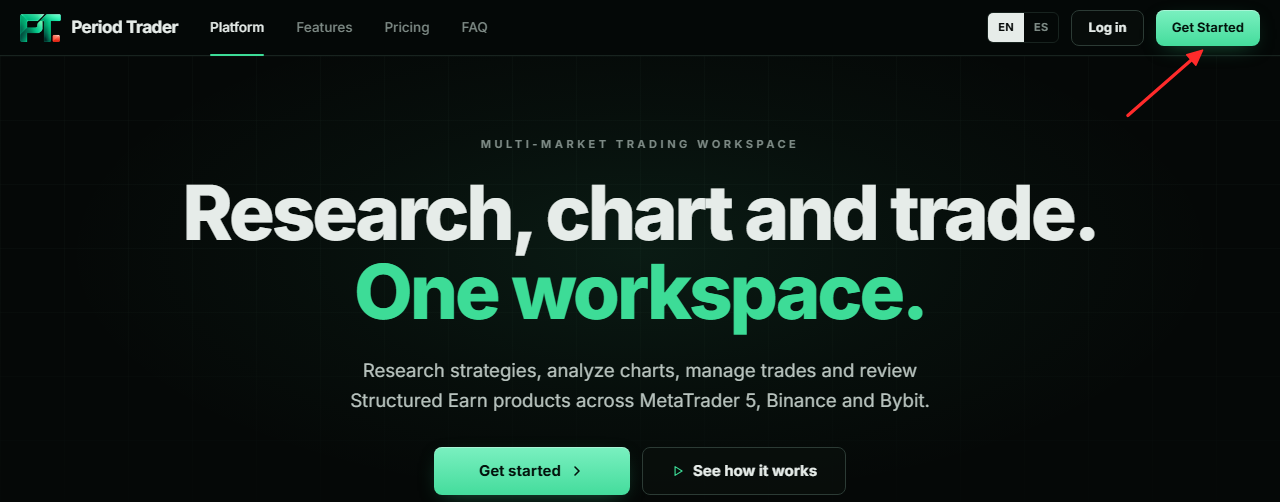
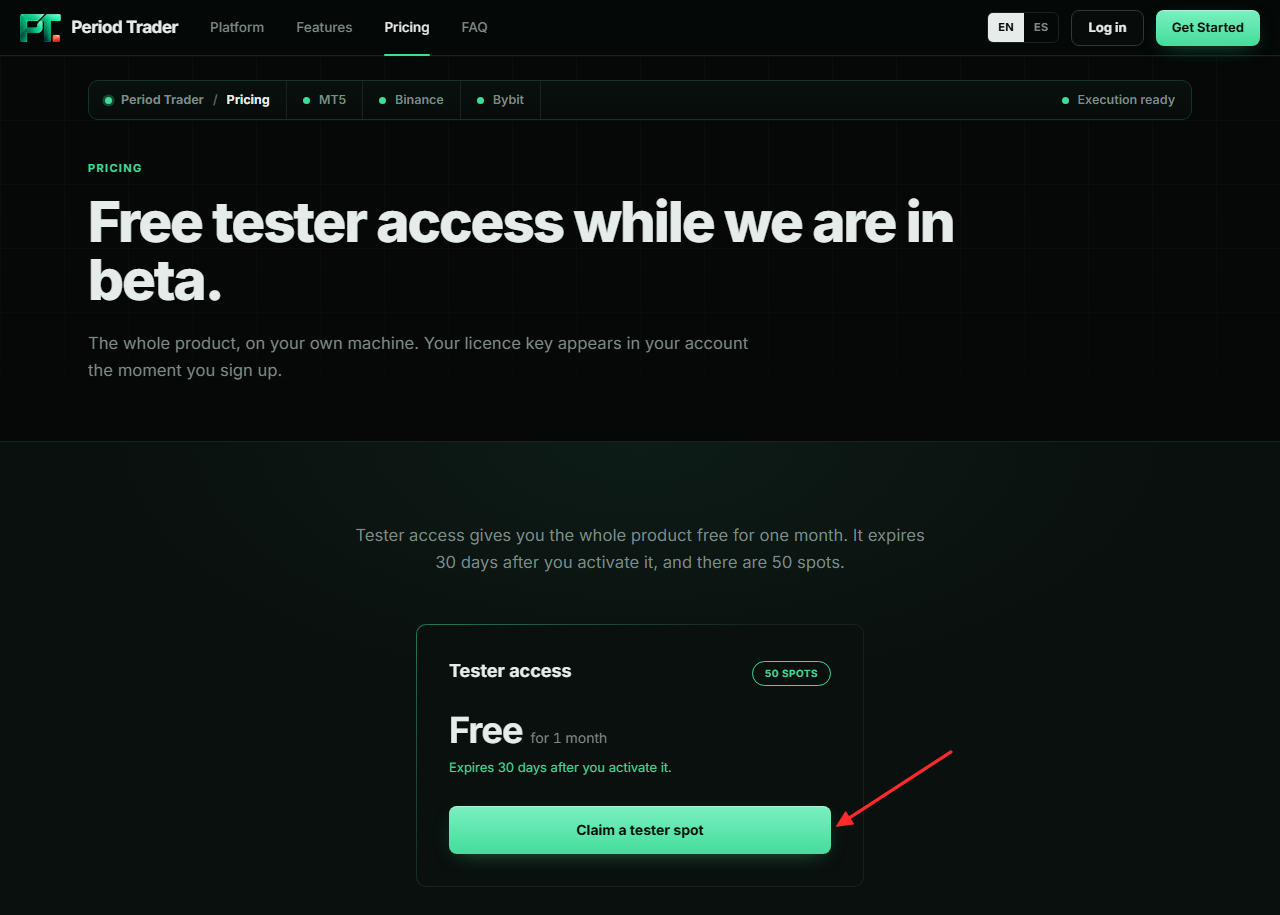
Click Get Started at the top of any page — it opens the pricing page. Pick the tester plan and complete the checkout. It is free — no payment details are required.
Check out with your email
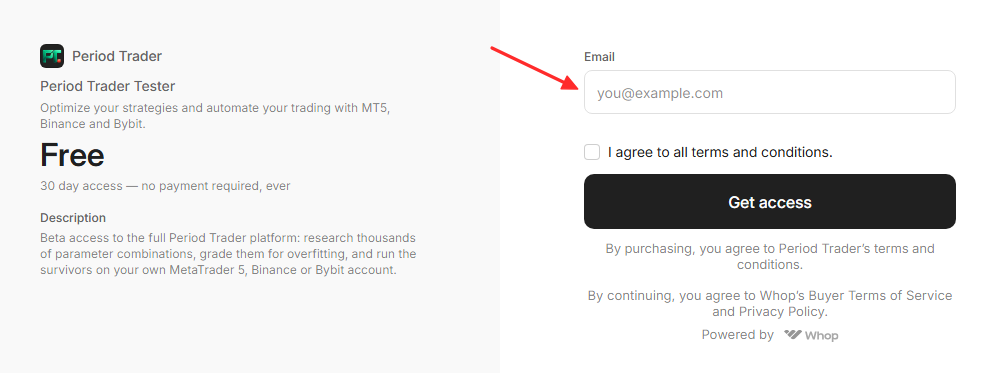
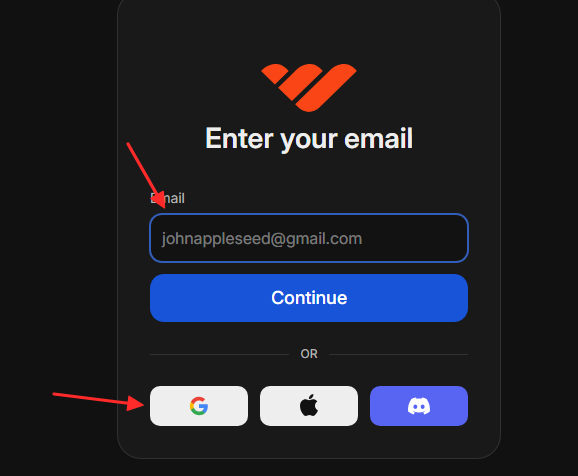
Checkout asks for one thing: an email address. That address becomes your Whop account, so use one you can receive mail on.
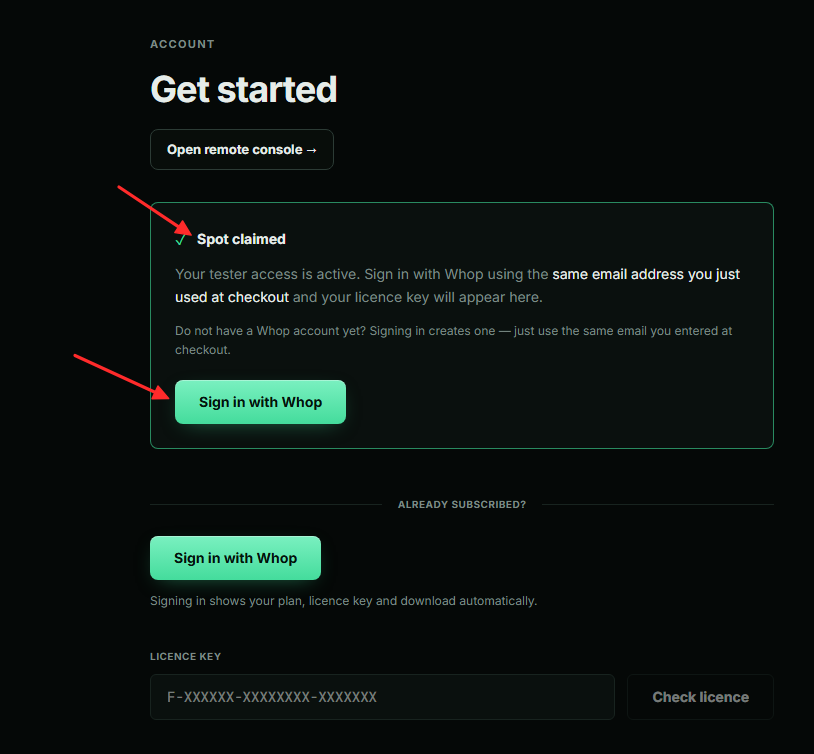
Sign in with Whop
Checkout brings you back to this site. Click Sign in with Whop and use the same email — your licence key appears automatically.
Copy your licence key
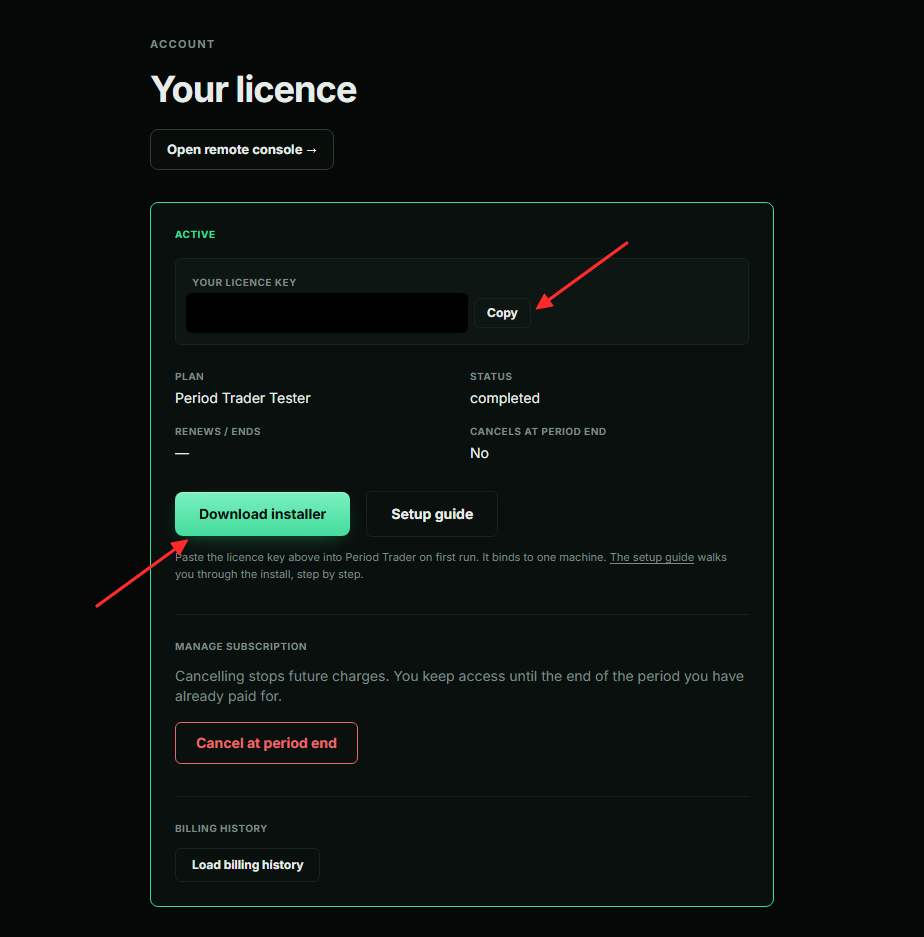
Your account page shows one licence key. Copy it now; the app asks for it once, on first run.
Download the installer
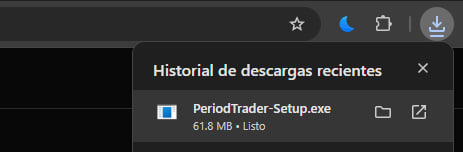
Download PeriodTrader-Setup.exe from your account page. It is the Windows installer for the desktop app.
Run it even if Windows warns
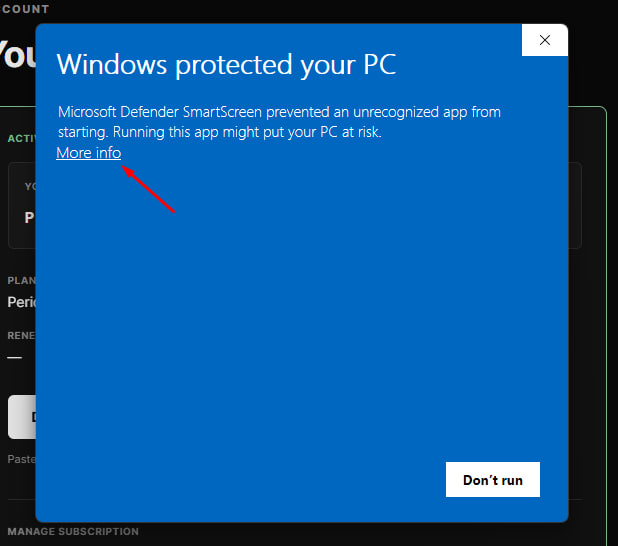
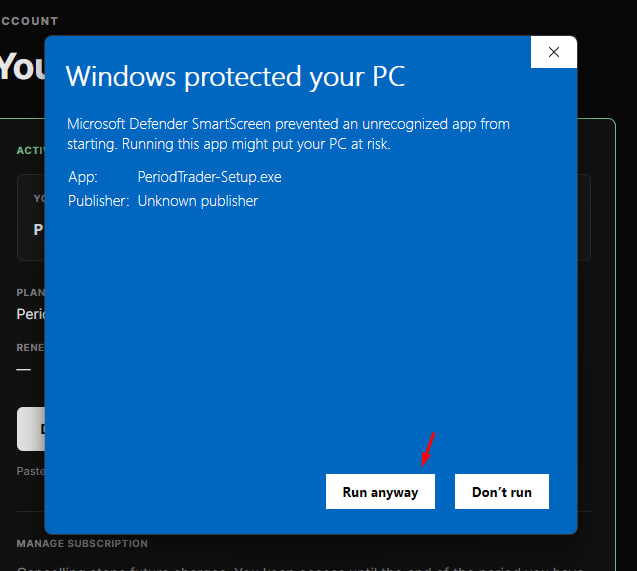
Windows shows “Windows protected your PC” for any new app that is not widely downloaded yet. Click More info, then Run anyway.
Install
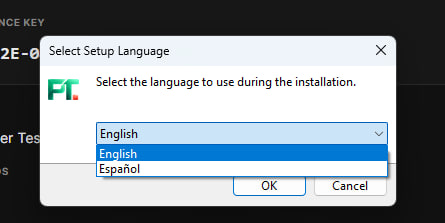
Pick a language and keep the defaults. The installer works like any other Windows program.
Paste your licence key
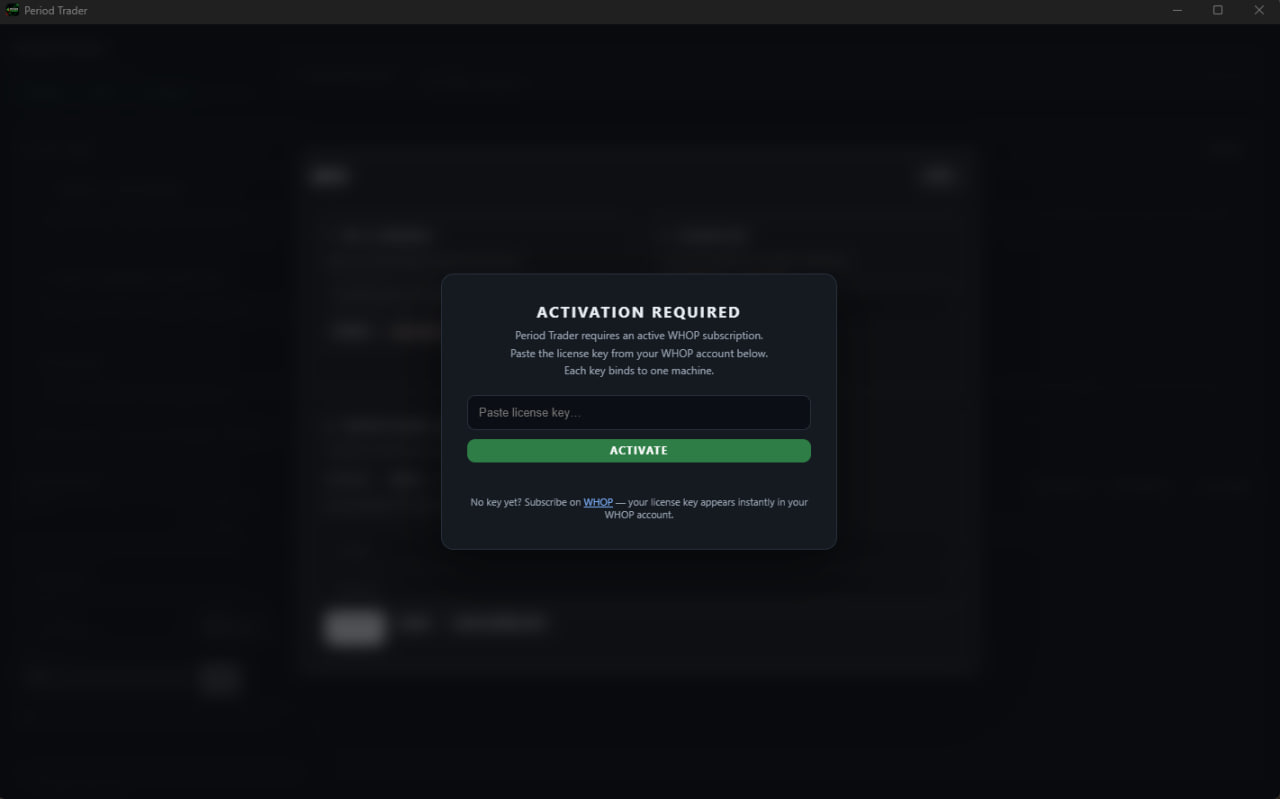
Start Period Trader and paste the key from step 4. It binds to one machine — your data stays on your computer.
That is the whole install
Next: connect your accounts and start a research run.
Once the app is running, connect MetaTrader 5 or Binance/Bybit from the Setup screen, start a research run and let it work. Manage your licence any time from your account.
Go to your account